Portable app · under 1 MB · no installer

Screen and audio recorded clean.

Capture your screen with microphone and system audio in one MP4 file. No watermark, no account, no bloat—just hit a hotkey and record what you need.

No watermark everNo account requiredCompletely freev1.0.1
No watermarkHotkey controlMP4 outputMic + speakerPortable app
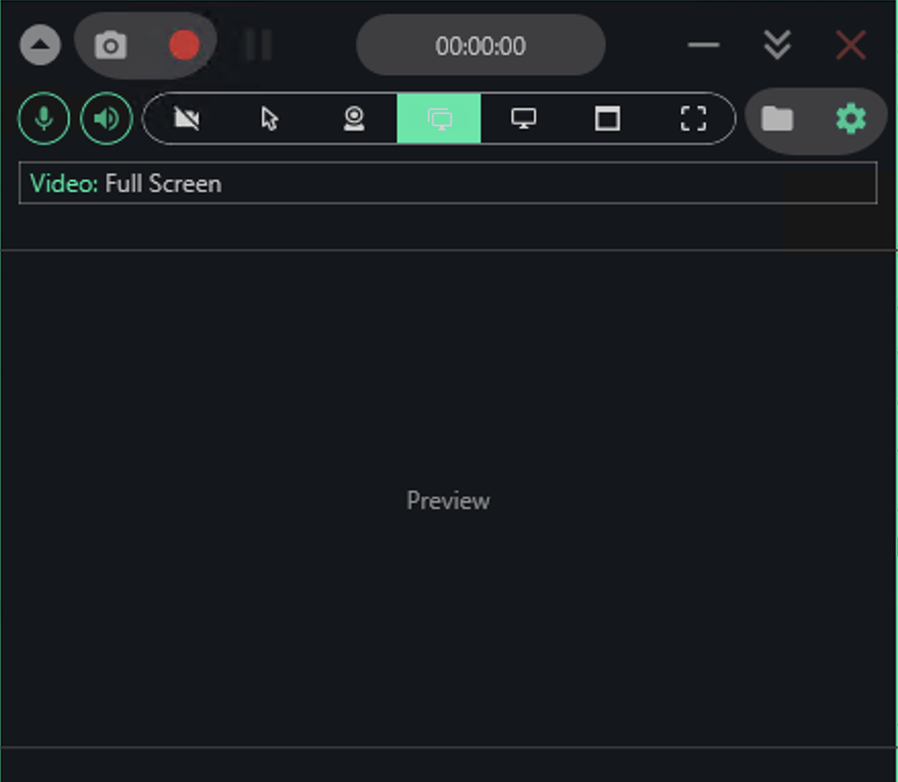
Screen and Audio Recorder app window on Windows
Setup guide

Get started in four steps.

Extract the file, pick your source, add audio, and press record.

1
Extract and launchUnzip the downloaded file and run the app from the extracted folder—no installation needed.
2
Choose what to recordSelect Full Screen, Window, Region, or a specific monitor from the toolbar.
3
Toggle your audio tracksClick the mic and speaker icons to include microphone, system audio, or both.
4
Hit record and stopPress the red button or use your hotkey to start; press it again or hit the hotkey to stop. Your MP4 is ready in Videos/Screen and Audio Recorder.
Why it matters

Why choose a dedicated recorder over built-in tools.

Windows Game Bar works for quick clips, but falls short for tutorials, demos, and mixed audio.

01

Record any window or region

Game Bar skips File Explorer and system windows. This tool captures whatever you point at. Draw a box around the area you need and record just that.

02

Mic and system audio together

Narrate over background music or app sounds without separate tracks. Both audio sources merge into one clean MP4.

03

Always local, never cloud

No upload, no cloud storage, no waiting. Your video lands in your Videos folder seconds after you stop recording.

04

Keyboard and mouse overlays

Toggle keystroke and click indicators on for tutorials so viewers see every input. Turn them off for clean captures.

In action
Inside the appScreen and Audio Recorder window

Capture full screen, windows, or regions with crystal-clear audio.

Choose your source before hitting record: full screen, a single window, a drawn region, or a specific monitor. Both microphone and system audio are mixed into the final file without quality loss.

Full-screen captureRecord everything on your monitor with one click.
Window or region modeIsolate a single window or draw a custom area to record only what matters.
Audio mixingCapture your voice and system sound in the same track, ready to upload or edit.
Questions answered

Questions answered.

Is there a watermark on my video?

No. Every export is clean and ready to share or upload as-is.

Do I need to create an account?

No account, no login, no cloud sync. Download, extract, and record.

Can I record just my microphone, or just system audio?

Yes. Toggle each audio source on or off before you start recording.

What file formats does it produce?

MP4 with H.264 video codec for compatibility with YouTube and most video editors. GIF output is also available for quick clips and bug reports.

Does it work on Windows 10?

Yes, on both Windows 10 and Windows 11, 64-bit versions.

Do I need admin rights to run it?

No. Running it from your user folder is enough for normal screen and audio recording.

Is it really free?

Yes. No paid tier, no trial expiration, no hidden costs.
Versus the rest

How it stacks up against Windows built-ins.

Game Bar is convenient for gaming clips, but lacks the flexibility and control most creators need.

Record File Explorer
Yes
No
Mic and system audio
Both in one file
System audio only
Region or window capture
Yes, both modes
Full screen only
No watermark
Always clean
Always clean
Keyboard indicators
Optional overlay
Not available
Portable setup
Run from anywhere
System app only

Start recording in seconds.

Download, extract, and capture your first video today—completely free and without any sign-up.

Download for Windows
Latest release · v1.0.1

Screen and Audio Recorder guides